Purchase Order App in a Weekend
I started this project with a simple goal: build a Purchase Order Request application using Power Apps,
SharePoint, and Power Automate.
At the time there wasn't a SharePoint site, there weren't any SharePoint lists, there wasn't a Power App,
and there certainly wasn't an approval workflow. There was simply an idea and a curiosity about how far I
could take it. The original design seemed straightforward enough. Create a purchase order, add line items,
submit it for approval, and call it a day.
As it turns out, purchase orders don't always cooperate with simple designs.
The first challenge appeared while deciding how the data should be stored. Purchase orders contain header
information such as vendor, department, requestor, and dates, but they also contain individual line items. A
single SharePoint list would have worked initially, but it quickly became obvious that line items needed
their own structure. That realization led to a parent-child design consisting of a PurchaseOrders list and a
PurchaseOrderItems list connected by a PurchaseOrderID field.
With the data model in place, attention shifted to the Power App. The first version allowed users to enter
vendor information, select a department, add line items, and calculate totals. It worked well enough for
users who were ready to submit immediately, but it exposed another question very
quickly.
What happens when someone starts a purchase order and isn't ready to finish it?
That question introduced Draft functionality. Users needed the ability to save their work and return later.
Saving drafts turned out to be relatively simple. Reopening and editing drafts turned out to be much more
interesting.
If users can save drafts, they immediately want to reopen them.
Technology users are funny that way.
A My Purchase Orders screen was added to display draft requests belonging to the current user. Selecting a
draft loaded the existing purchase order back into the original entry screen, including all associated line
items. Rather than building a separate Edit screen, I decided to reuse the original Purchase Order screen
for both new and existing requests.
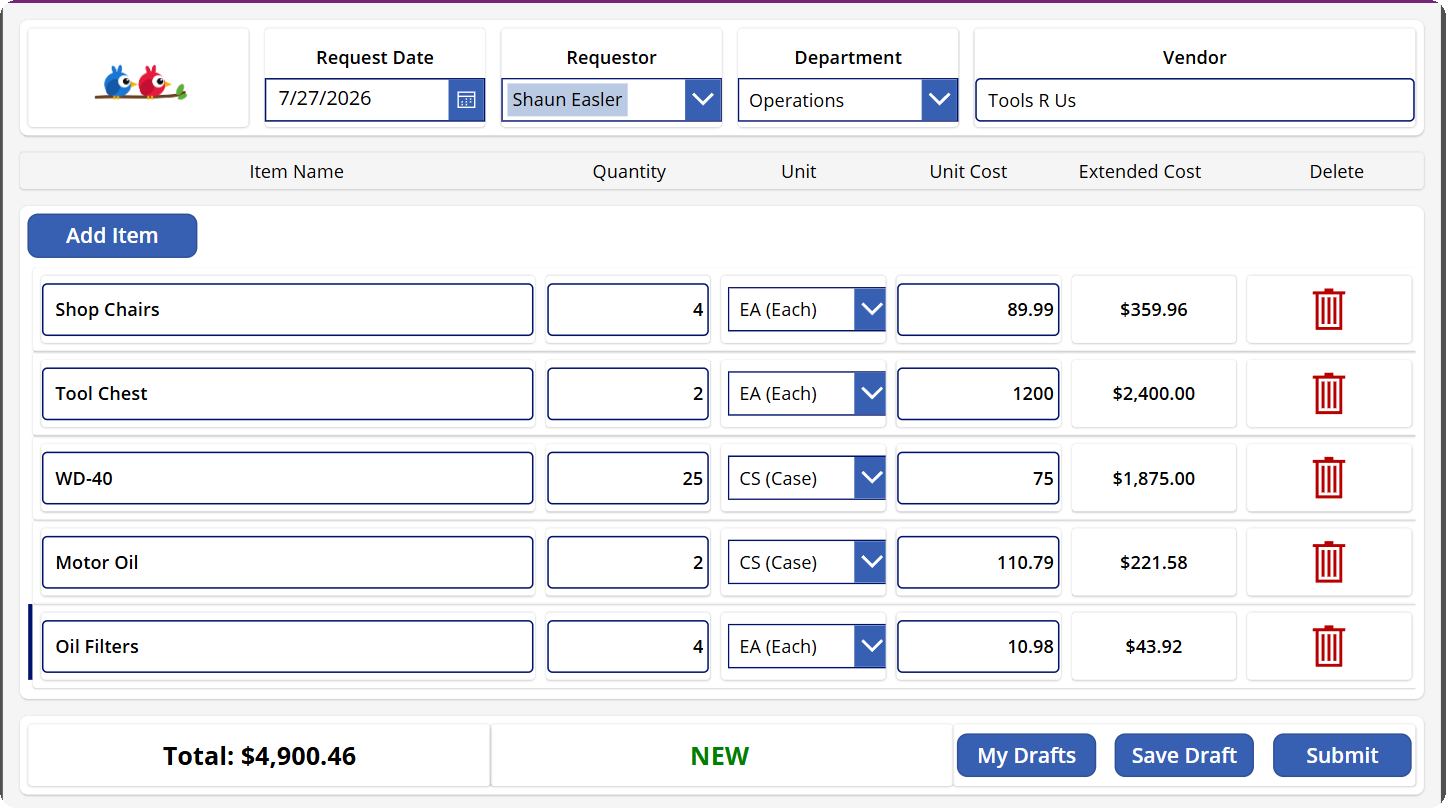
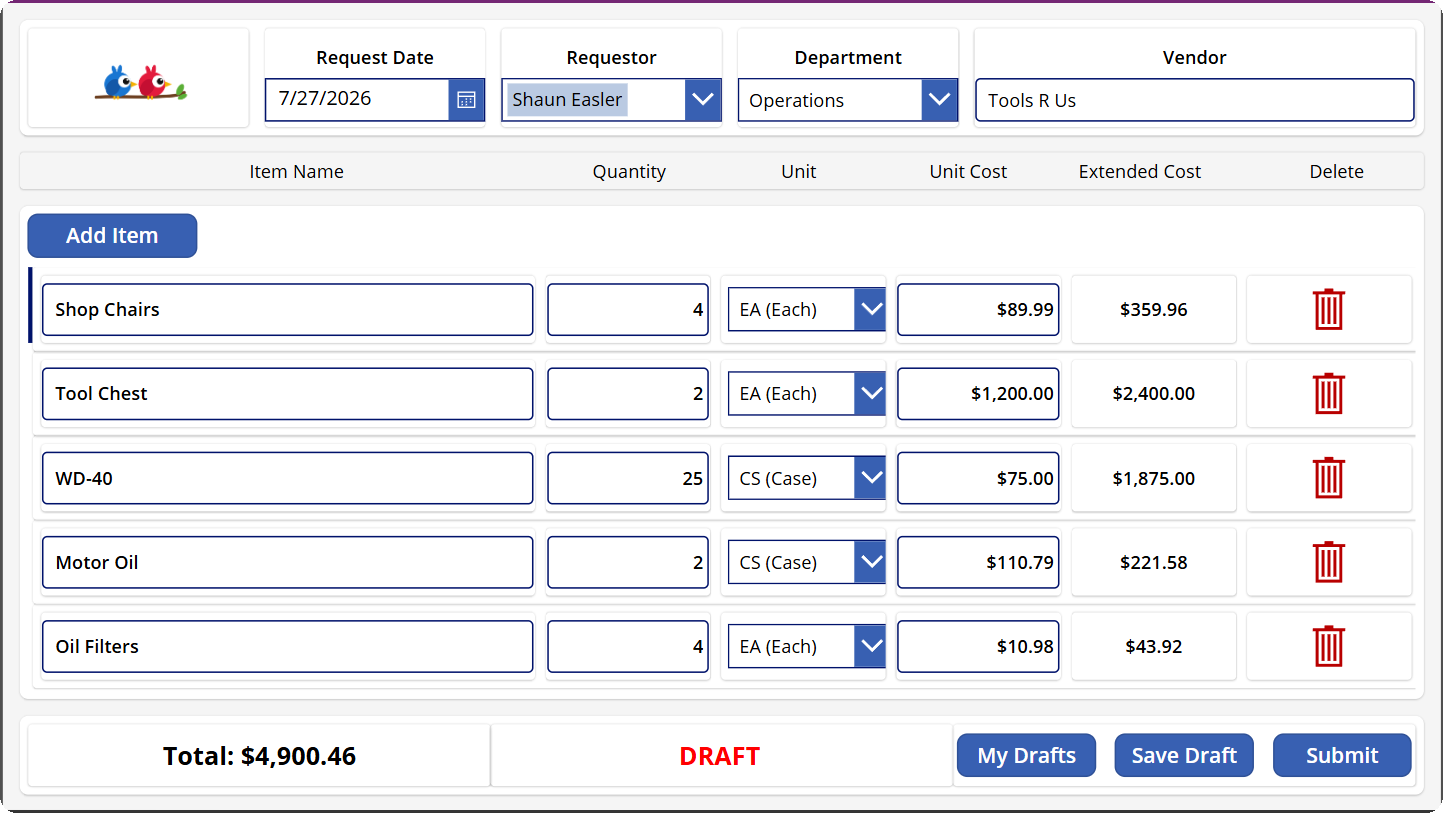
That decision turned out to be one of the more important architectural choices in the project. The same
screen could now operate in two different modes. When no purchase order was loaded, the application operated
in NEW mode. When an existing purchase order was loaded, the application operated in DRAFT mode. A simple
indicator displaying NEW or DRAFT eventually became a useful visual representation of the application's
internal state.
As draft functionality matured, another challenge appeared. Creating a purchase order and updating a
purchase order are two completely different operations. The application needed to determine whether it
should create a new record or update an existing one. Existing line items needed to be removed and recreated
without generating duplicates, and validation logic needed to function correctly regardless of whether the
request was new or existing.
Several rounds of testing eventually produced a stable draft lifecycle: Create Draft, Open Draft, Edit
Draft, Save Draft Again, and Submit Draft. Each step revealed assumptions that weren't obvious when the
project first began.
Validation introduced another learning opportunity. Quantity and Unit Cost fields seemed straightforward
until users started entering letters where numbers were expected. Initially, Power Apps attempted to convert
text values into numbers, producing runtime errors before validation logic had an opportunity to intercept
them. The solution required separating numeric validation from business validation and ensuring calculations
only executed when valid numeric values were supplied.
With drafts and validation working properly, attention shifted to workflow. A purchase order isn't
particularly useful until somebody approves it. The initial approval process was intentionally simple.
Submitted requests triggered a Power Automate flow that updated the status and generated an approval request
through Microsoft Teams. The goal wasn't sophistication. The goal was simply proving that the end-to-end
process worked.
It did.
Once the basic approval process was functioning, another question appeared. Who should actually approve the
request? Hardcoding approvers works for demonstrations, but it isn't particularly useful in a real
environment. Instead, the workflow was modified to use the Get Manager (V2) action. The flow retrieves the
requestor's manager and routes the approval automatically, creating a much more realistic approval process
without requiring manual configuration.
As the workflow matured, approval comments became important as well. Approvers weren't simply approving or
rejecting requests. They were providing feedback. An ApprovalComments field was added to the PurchaseOrders
list and approval responses were written back to SharePoint after the approval completed. The workflow now
captured not only the decision but also the reasoning behind it.
Looking back, one of the most interesting aspects of the project is how little of the final solution existed
in the original idea. I didn't start out intending to build draft management. I didn't start out intending
to manage parent and child records. I didn't start out intending to build a manager approval workflow. I
certainly wasn't thinking about approval comments when the first SharePoint list was
created.
Each capability emerged from solving the problem immediately in front of me.
The project reinforced a lesson that seems to appear in almost every technology lab I build. The original
goal is often only the starting point. The most valuable learning happens while solving the problems you
discover along the way.
The entire application, SharePoint structure, draft lifecycle, approval workflow, and manager approval
process were built over the course of a weekend.
Not bad for a project that started with, "I think I want to build a Purchase Order app." 🐦🐦